
Get paid with one scan.
Scan2Pay adds a QR code to your QuickBooks invoices. Your customer scans it and pays.
Trusted by 3,000+ companies worldwide. Free plan available. Installs from the Intuit App Center.
Three steps, then it's payable.
A QR invoice from start to finish, with sample data. Click a step to jump to it.
Pick the invoice and the QR
Search by number, then choose a payment link, web link, text or FATOORA code.
Everything between your invoice and the payment.
Build the QR, send it, and keep track, all from one screen.
ZATCA FATOORA QR codes on your QuickBooks invoices.
Invoices issued in Saudi Arabia need a ZATCA e-invoice QR code, and a standard QuickBooks Online invoice doesn't include one. Scan2Pay adds the FATOORA QR to the invoice you already made, from the same screen as your payment QR.
رمز الاستجابة السريعة (QR) للفوترة الإلكترونية «فاتورة» من هيئة الزكاة والضريبة والجمارك، على فواتير QuickBooks Online.
What's in the Phase 1 QR code
ZATCA's Phase 1 (generation phase) QR code carries five fields, encoded in TLV (tag-length-value) format and Base64, as required on simplified tax invoices:
- Seller name, as registered with ZATCA
- VAT registration number of the seller
- Invoice date and time (timestamp)
- Invoice total, including VAT
- VAT total
How it works in QuickBooks
- Pick the invoice in Scan2Pay and choose the FATOORA QR type
- Place the QR anywhere on the invoice, first page or all pages
- Generate: the QR is stamped onto the invoice PDF and saved to QuickBooks
- Send or print the invoice with its ZATCA QR
ZATCA Phase 2 (integration phase) support is coming. Phase 2 adds cryptographic fields and invoice clearance and reporting through a ZATCA-integrated solution. Today Scan2Pay creates the Phase 1 QR code.
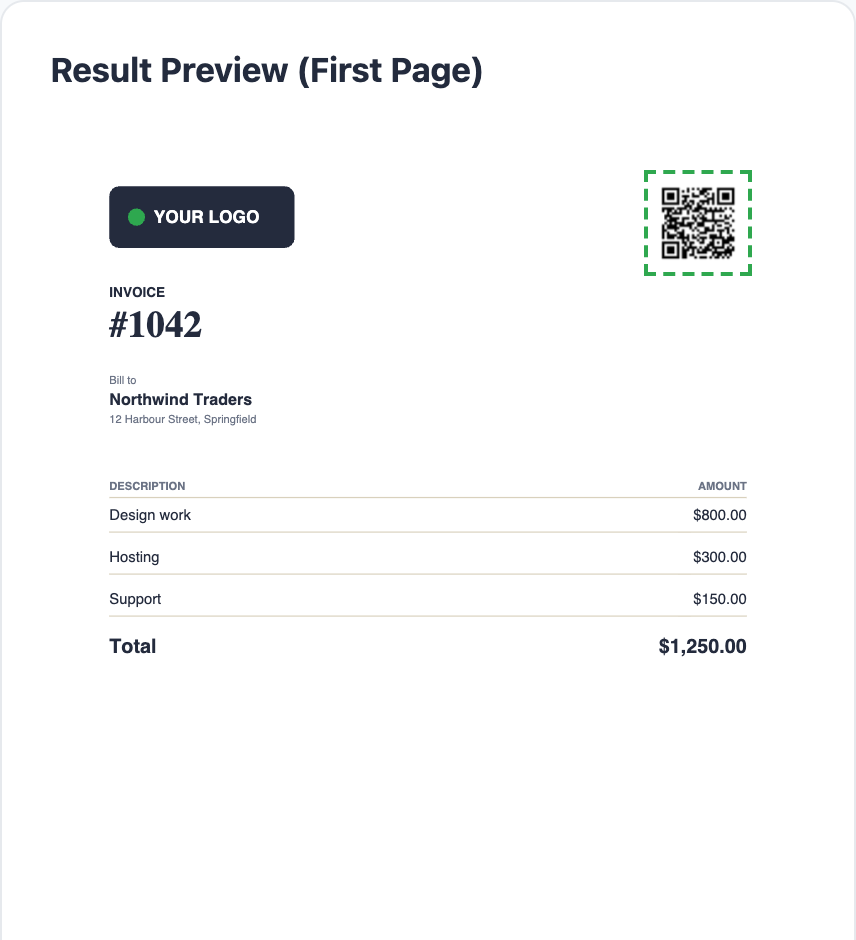
Build the QR your way
Pick the invoice, choose what the code does, and put it exactly where you want it.
- Four QR types: Payment Link, web Link, plain Data, FATOORA e-invoice
- Search any invoice by its number
- Drag the QR anywhere on a live preview, on every plan
- First page or all pages, with a preview that matches the final PDF
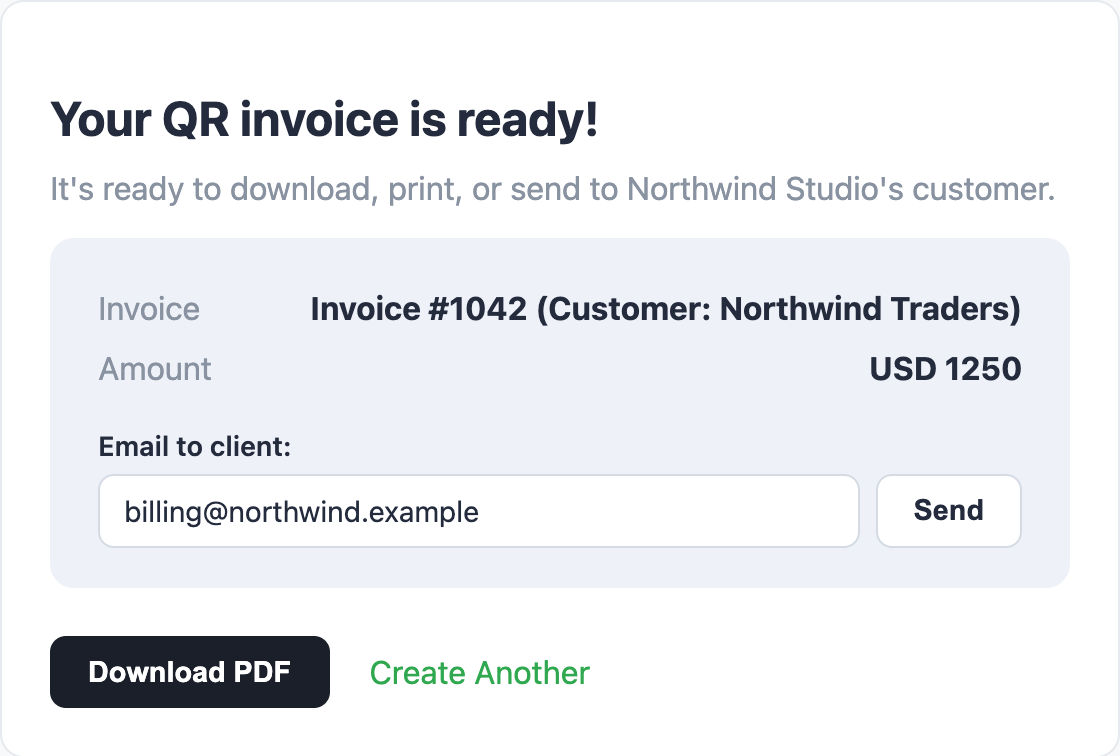
Send it, print it, keep it
The finished invoice is ready to go the moment you generate it.
- Email the invoice to your client
- Download the PDF, or print it
- Saved to QuickBooks as an attachment on the invoice
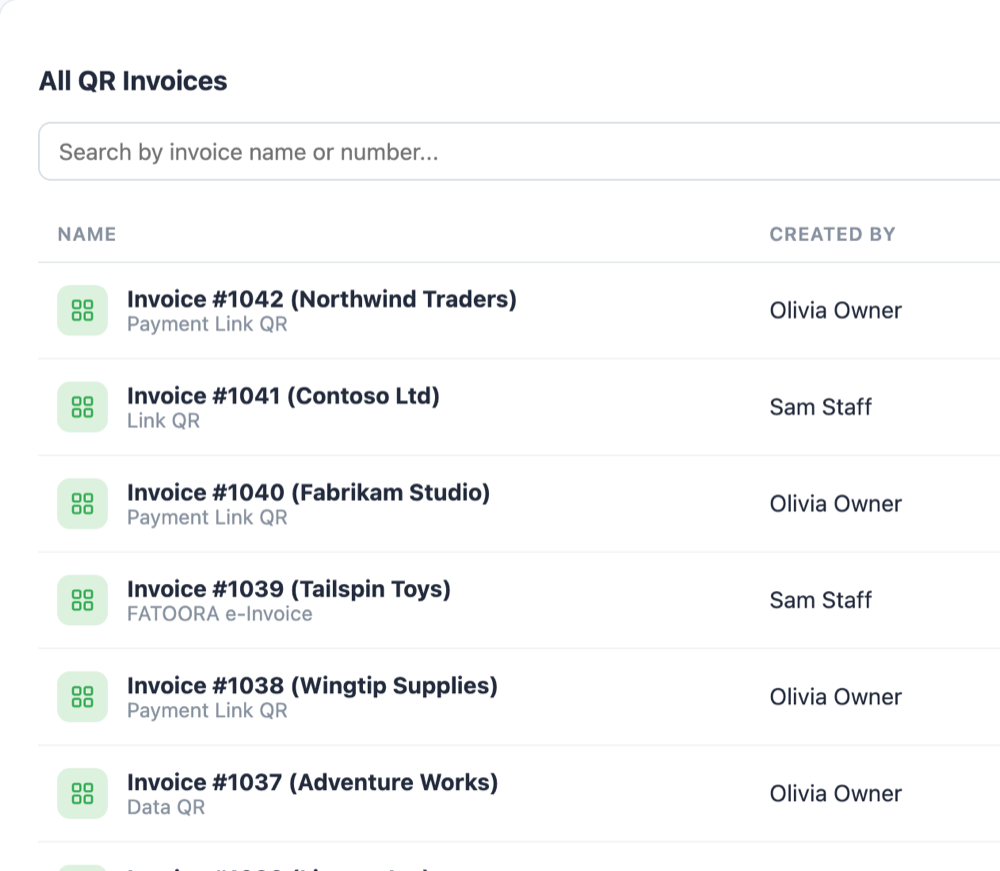
Keep track
Every QR invoice you have made, in one list.
- Search by invoice name or number
- View, re-send, download or delete any QR invoice
- See who made it and when
- Dashboard with your total, plan usage and QR types
| Name | Role | Access |
|---|---|---|
| Olivia Owner (you) | Admin | Enabled |
| Sam Staff | Member | Enabled |
Your team, your companies
Bring your team in, and keep each QuickBooks company separate.
- Admins decide who on the team has access
- Turn people on or off, or make them admins
- Switch between the QuickBooks companies you belong to
- Each company keeps its own plan and invoices
Anyone who sends QuickBooks invoices.
Get paid without the back-and-forth.
A FATOORA (ZATCA) QR on the invoices you already make.
Hand over a printed invoice that can be paid.
Several companies, one login.
Many people invoicing, one admin in control.
Common questions.
What is Scan2Pay?
Scan2Pay is a QuickBooks Online app made by Effectify. It adds a QR code to your QuickBooks invoices, so your customer can scan it and pay through the invoice's payment link. It can also add a FATOORA (ZATCA) e-invoice QR code for Saudi Arabia.
How do I add a QR code to a QuickBooks Online invoice?
Install Scan2Pay from the Intuit App Center and sign in with your Intuit account. Pick the invoice, choose the QR type, drag the QR where you want it on the preview, then click Generate. Scan2Pay stamps the QR onto the invoice PDF, saves it to QuickBooks, and lets you email, download or print it.
What does the QR code do?
You choose, per invoice: open the invoice's QuickBooks payment link, open a web link, carry plain text, or act as a FATOORA e-invoice code.
Does it change my invoice in QuickBooks?
Not the invoice itself: the amounts, lines and customer stay as they are. Scan2Pay stamps the QR onto a copy of the invoice PDF and adds the finished PDF as an attachment on the invoice.
Do I need QuickBooks Payments for the payment QR?
The Payment Link QR uses the online payment link QuickBooks creates for an invoice, so that invoice needs online payments turned on. If it has none, use a Link QR that points to any payment page you already use, or a Data QR for plain text.
What does Scan2Pay access in my QuickBooks?
Your invoices (to find them and render the PDF) and your company details (name, currency). It adds the finished PDF to the invoice as an attachment. You sign in with Intuit, and you can disconnect at any time in Settings.
Can I choose where the QR goes?
Yes. Drag it anywhere on the live preview, on every plan, and pick the first page or all pages.
Is there a free plan?
Yes. Plan limits and pricing are on the app listing.
Does Scan2Pay create a ZATCA (FATOORA) QR code?
Yes. Choose the FATOORA QR type and Scan2Pay adds the ZATCA Phase 1 e-invoice QR code to your QuickBooks Online invoice. It carries the seller name, VAT registration number, invoice date and time, invoice total with VAT and the VAT total, in TLV and Base64 format.
Does Scan2Pay support ZATCA Phase 2?
Not yet. Phase 2 (the integration phase) support is coming. Today Scan2Pay creates the Phase 1 QR code. Phase 2 also requires signed invoices to be cleared or reported to ZATCA through an integrated solution.
Does Scan2Pay create e-invoice QR codes for other countries?
Not today. Scan2Pay's e-invoice QR is for Saudi Arabia (ZATCA FATOORA). It doesn't create Jordan JoFotara, Egypt ETA, Malaysia MyInvois or India e-invoice (IRN) QR codes, which are issued by those tax authorities, or Swiss QR-bills. In any country you can still add a payment QR, a web link or a text QR to your QuickBooks invoices.
Is Scan2Pay the same app as QRify?
Yes. Scan2Pay was called QRify, and on the Intuit App Center it was listed as "QRify: Add QR Codes To Invoices". It is the same app, made by Effectify.
How do I sign in?
With the Intuit account you already use for QuickBooks. There is no separate password.
Still have a question?
Put a QR on your next invoice.
Free plan available. Works with the QuickBooks you already use.
Get Scan2Pay